Paste your script and set the format
Name your project, choose 720p or 1080p and 16:9, 9:16 or 1:1. Paste your script, choose Smart (auto), Per sentence or Per words splitting, and enable AuraClipy Enhance when needed.
Write your story once. AuraClipy turns each part into a visual scene, generates AI images in your chosen style and assembles them into a video you can refine before export.
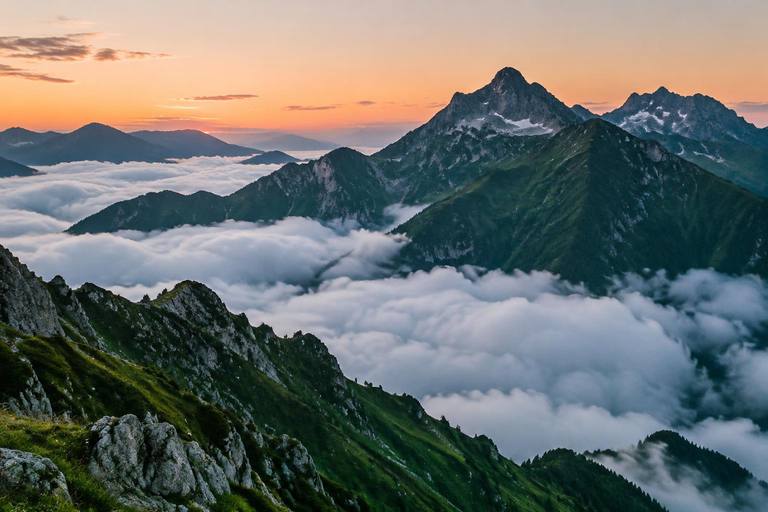
Wide shot of alpine peaks above a sea of clouds. Golden dawn light, cinematic composition.
9:16 · VIDEO PREVIEWWhen to use it
Choose this when your story calls for a particular look, imaginary places or concepts that stock footage cannot show.
The real workflow
Name your project, choose 720p or 1080p and 16:9, 9:16 or 1:1. Paste your script, choose Smart (auto), Per sentence or Per words splitting, and enable AuraClipy Enhance when needed.
Select Realistic, Cinematic, Anime, Pixar/Cartoon 3D, Whiteboard doodle, Watercolour, Pixel art or another available style. AuraClipy adds the selected style direction to scene prompts.
Cinematic
Anime
Pixar 3D
Whiteboard
Watercolor
Pixel ArtCreate Timeline turns the script into scene prompts. AuraClipy Enhance refines the visual context; generated image prompts are compact, English visual descriptions. Review the direction for each scene.
Above the clouds
AI-generated images become scene clips. Inspect each thumbnail, regenerate a scene, edit its prompt or upload your own video or image. Keep the visual sequence consistent before export.
Select AI VOICE OVER, search the available voices and audition a voice, or use your own recording. Generated voice-over is prepared for export and the visuals are synchronized to the spoken words.


Choose an animated caption template such as Dynamic Highlight, Hormozi Bold or Karaoke. Resize and position it, review the video, and export. Wait for browser-prepared scene media to upload before leaving the page; finished renders appear in Recent Exports.
Why it helps
Open the creator and choose Script to Video AI Images.